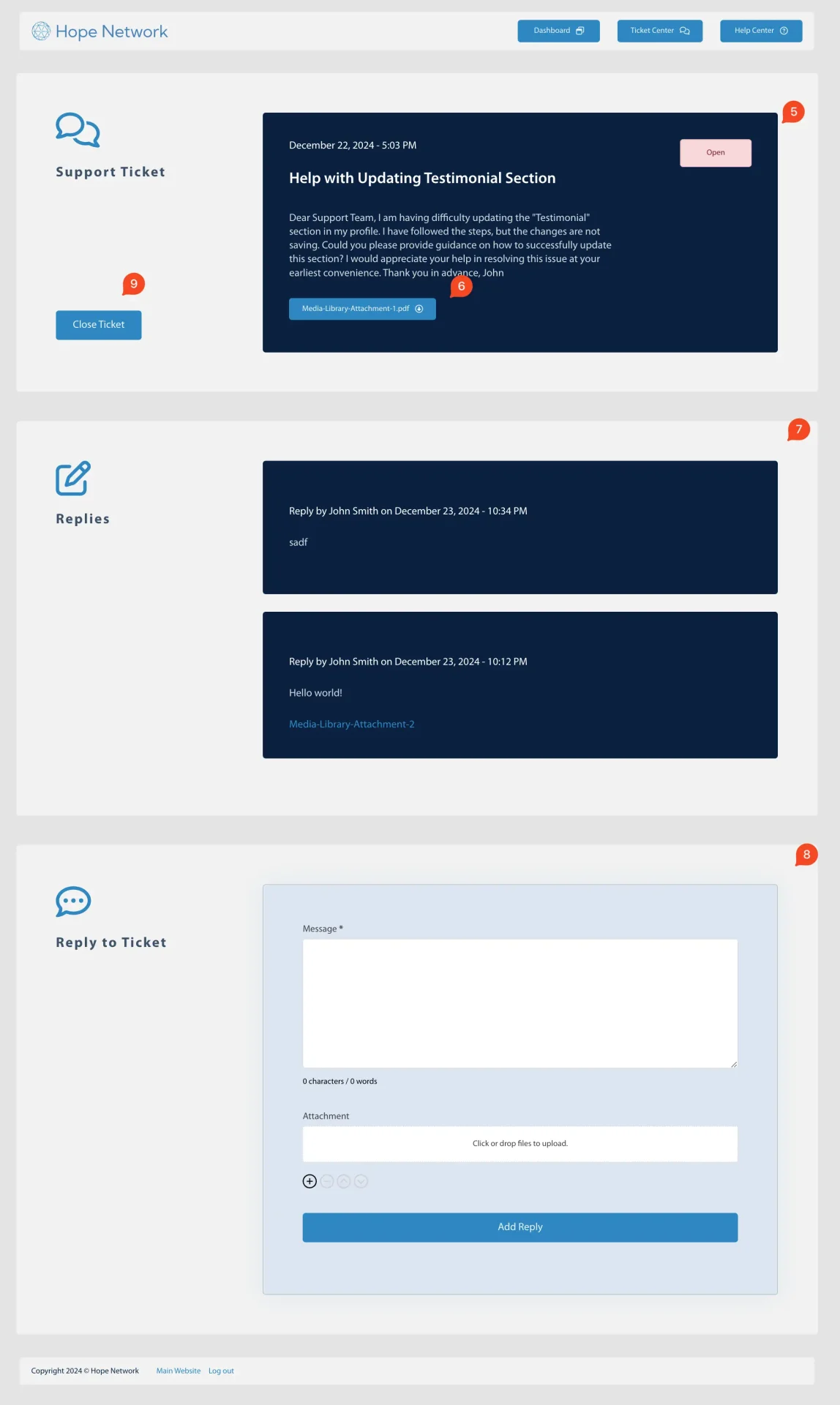
1. Ticket List
- Displays all submitted tickets, including their submission dates, subjects, and a brief excerpt of their content.
2. Ticket Status
- Open: Indicates the ticket has been submitted but not yet addressed by the support team.
- In Progress: Means the support team is actively working on the ticket, and there may be multiple replies exchanged between you and the admin.
- Resolved: Signifies the ticket is closed because the issue or inquiry has been resolved.
3. View Ticket
- Click “View Ticket” to access the full ticket details and the conversation history.
4. Submit New Support Ticket
- Click “Submit New Support Ticket” to open a form where you can provide information about your new issue or request.
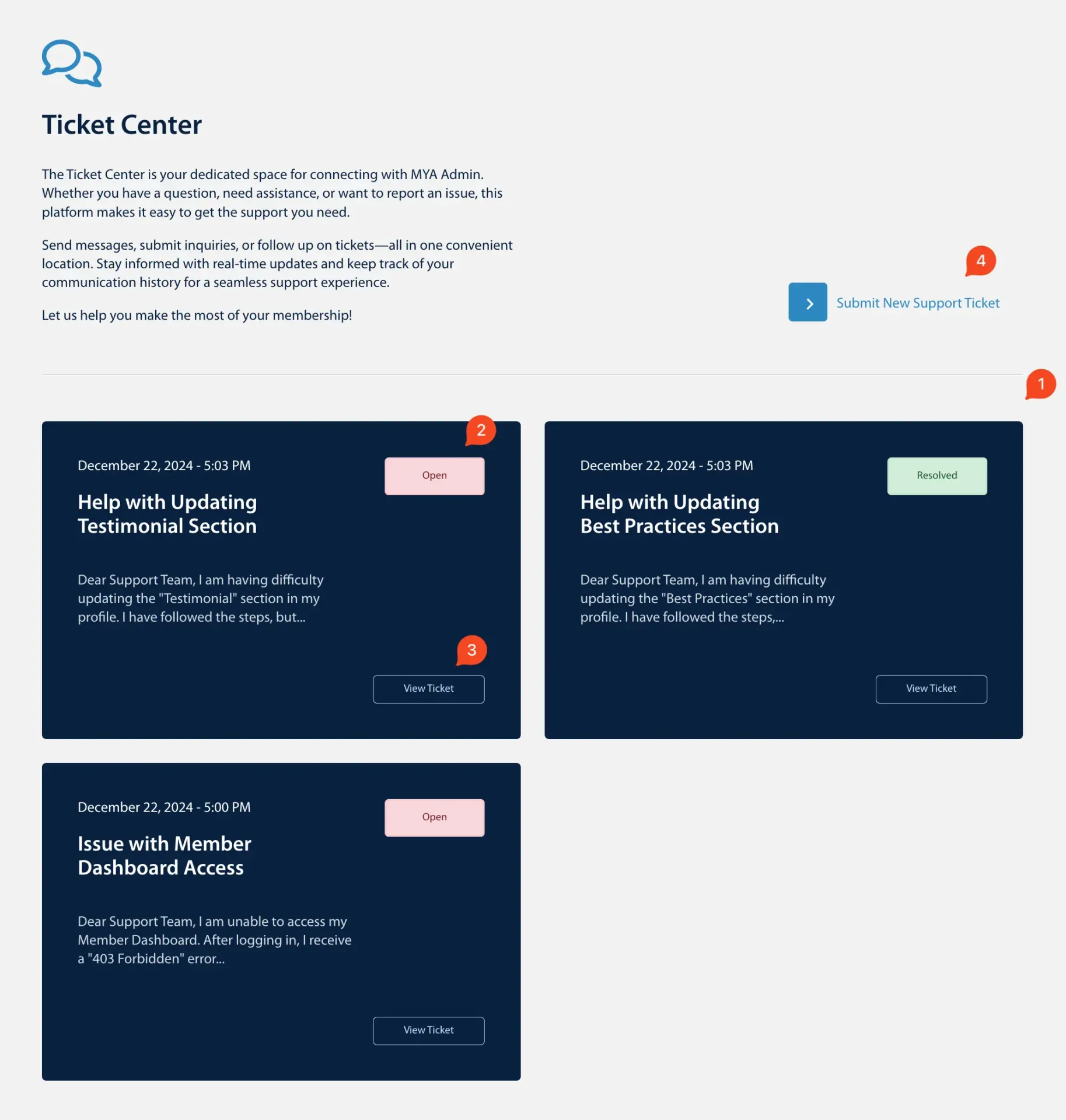
5. Ticket Details
- Shows the Date, Subject, the Full Body of the ticket, and the Ticket Status.
6. Ticket Attachments
- Any files or documents associated with the ticket are displayed here for easy reference.
7. Ticket Reply Threads
- A chronological list of all replies and updates posted by both you and the support team.
8. Reply to Ticket Form
- Use this form to add a new reply or provide additional information as needed.
9. Close Ticket / Reopen Ticket
- Close Ticket Button: Allows you to close the ticket once you’re satisfied with the resolution.
- Reopen Ticket Button: If the ticket is marked Resolved, you’ll see an option to reopen the ticket in case further assistance is needed.