This section allows you to create, view, and manage Testimonials. Here’s how it works:
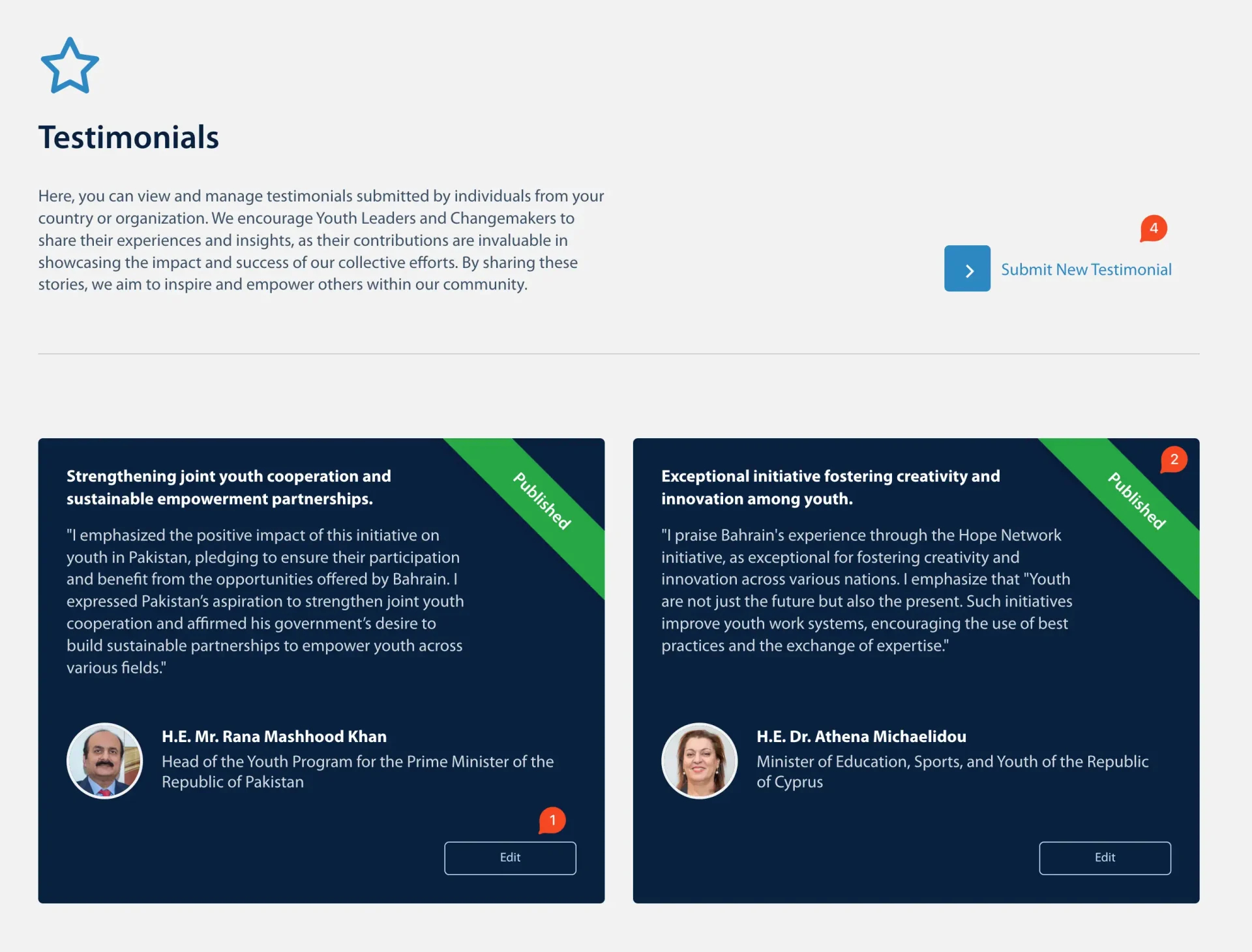
1. Edit
- Click “Edit” to modify an existing Testimonial. Update the text, name, or any other relevant details.
2. Published Testimonial
- A green ribbon indicates that the Testimonial is published and visible to others.
3. Pending Testimonial
- A yellow ribbon means the Testimonial is pending review and will not appear publicly until it’s approved.
4. Submit New Testimonial
- Click “Submit New Testimonial” to open the online submission form.
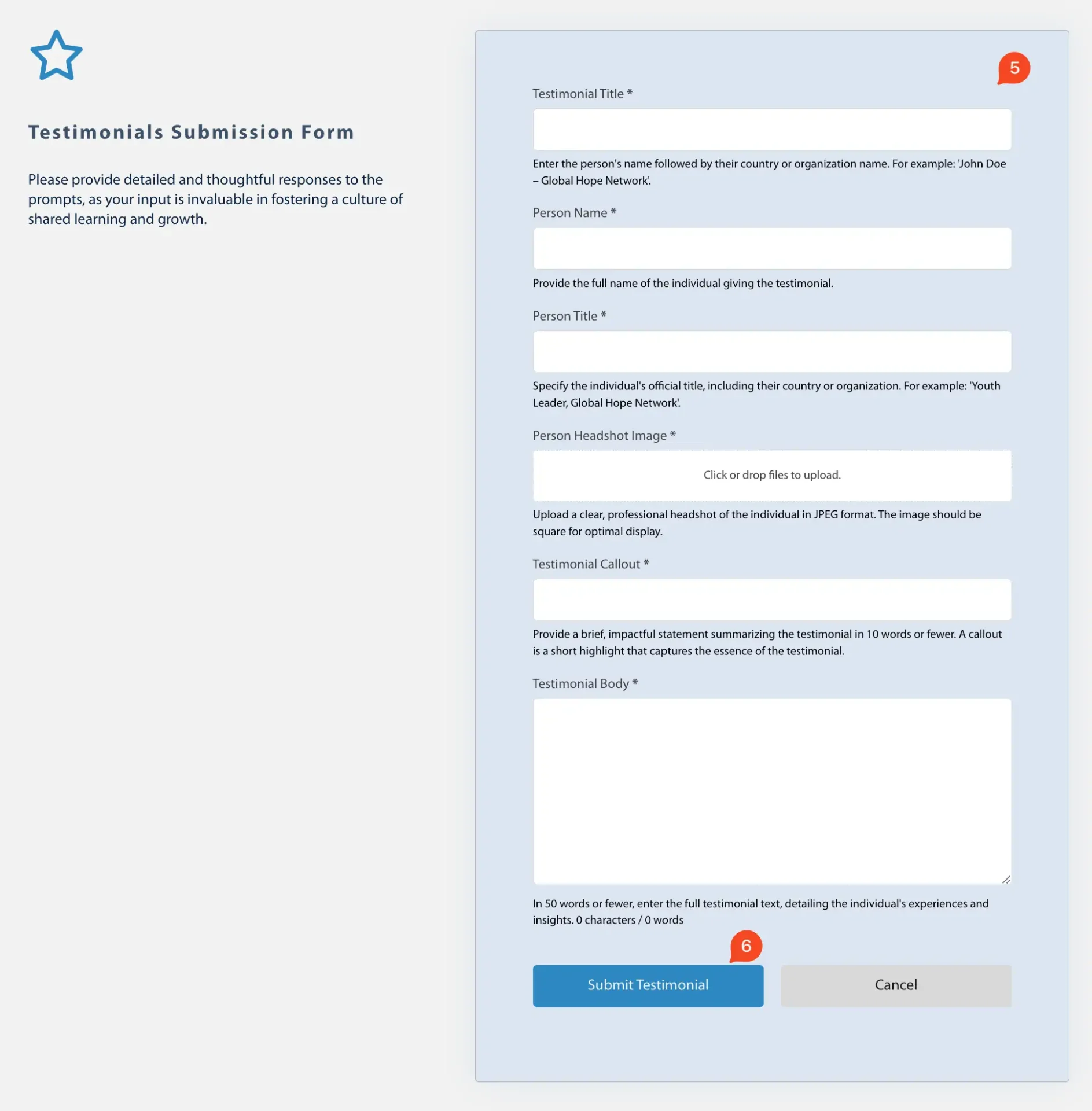
5. Testimonial Form
- Fill out the form using the help text under each field as a guide, ensuring you provide clear and accurate information.
6. Submit Testimonials
- Click “Submit” once you’ve completed the form. The new Testimonial will be marked as pending review until it’s reviewed and approved by an administrator.