Your Best Practices section allows you to create, view, and manage any practices or case studies that you wish to share. Here’s what you need to know:
1. View
- Click “View” to see how a particular Best Practice appears on the frontend of the site.
2. Edit
- Click “Edit” to make changes to an existing Best Practice. You can update the title, description, or any other details as needed.
3. Published Best Practices
- A green ribbon indicates that a Best Practice is published and visible to others.
4. Pending Review
- A yellow ribbon signifies that a Best Practice is pending review. It won’t be publicly visible until it’s approved by an administrator or a designated reviewer.

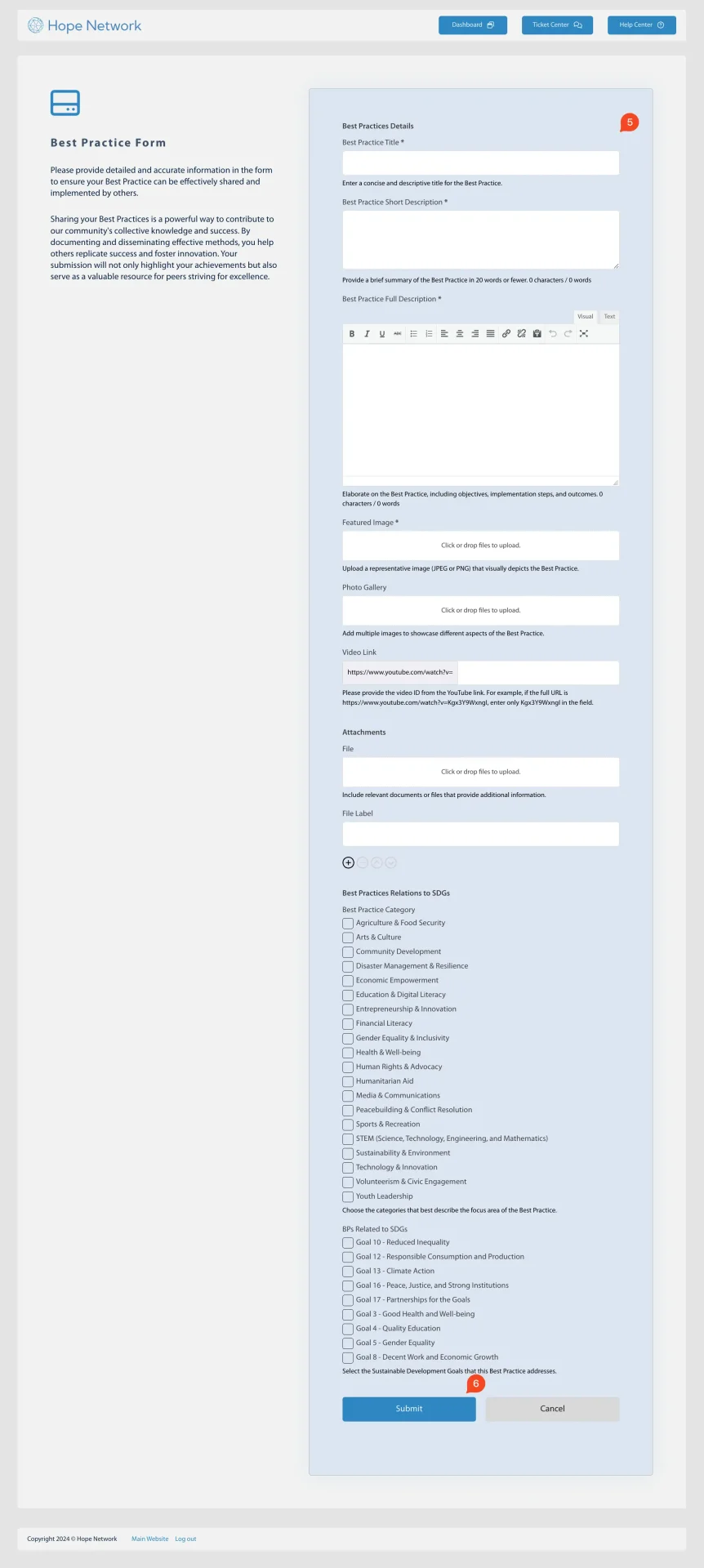
5. Submit New Best Practice
- Click “Submit New Best Practice” to open an online form where you can add a new Best Practice.
6. Submit
- Click “Submit” once you’ve completed the form. Depending on your site’s settings, your new Best Practice will either publish immediately or be marked pending review.